
Wi-Fi not reaching one room? How to find out why
Before moving anything or buying anything, spend ten minutes finding out what is actually happening in that room. Your phone can tell you more than the bars suggest.
In short
- First rule out the internet line: if it's slow right next to the router, the room isn't the problem.
- Then read the real signal in the room. On iPhone, Apple's free AirPort Utility shows it in dBm; around -67 dBm or better is comfortable for calls and video, -80 and below is unreliable.
- In most homes the fix is the router's position or a second access point on a cable. An extender placed in the weak room rarely helps.
On this page
When one room has bad Wi-Fi and the rest of the home is fine, the cause is almost always physical: the room is too far from the router, or something heavy sits between them. The temptation is to buy an extender and plug it in that room. Before you do, it's worth ten minutes to find out what is really going on, because the right fix depends on it and is often free.
First, make sure it's the Wi-Fi and not the line
Stand right next to the router and run a speed test on your phone. Then do the same in the problem room.
If it's already slow next to the router, the room isn't the problem. The cause is the internet line, the plan, or the router itself, and no amount of moving things around inside the home will change it. If it's fast next to the router and slow in the room, you're dealing with Wi-Fi coverage, and the rest of this guide applies.
Do this at the time of day the problem shows up. In the evening more people are online, at home and in the building, and a connection that looks fine at 10 in the morning can struggle at 9 at night.
Read the actual signal in the room
The bars on your phone are a rough summary, and different phones draw them differently. The number underneath, the signal level in dBm, tells you much more. It's always negative: -45 is very strong, -85 is very weak. How you read it depends on the device you have.
On an iPhone, install Apple's free AirPort Utility app. Then open the iPhone's Settings, scroll down to AirPort Utility and switch on Wi-Fi Scanner. Back in the app, tap Wi-Fi Scan and then Scan: your network appears with its RSSI, which is the signal level in dBm. Third-party apps can't read this value on an iPhone; Apple's own app can.
On a Mac, hold down the Option key and click the Wi-Fi icon in the menu bar. The line marked RSSI is the signal level; Tx Rate is the speed the Mac is currently talking to the router at.
On Android, open the details of your Wi-Fi network in Settings. Most phones show the signal as a word (excellent, good, fair, weak) and many show the link speed too. For the exact value in dBm, a Wi-Fi analyser app will do.
Your router or mesh app may also help. Many of them list connected devices with their signal or connection speed, which is useful for devices you can't easily check, like a TV or a games console.
As a rough guide to what the numbers mean in a home:
- -50 dBm or better: excellent, you're close to the router.
- Around -60 to -67 dBm: good. -67 is the level network designers use as the minimum for reliable calls and video.
- -70 to -75 dBm: browsing works, video calls start to stutter.
- -80 dBm and below: unreliable. Pages hang and devices drop off.
Walk from the router to the room
Now take three readings: next to the router, in the doorway of the problem room, and where you actually sit in it. The way the number changes along that path tells you what's wrong.
If it falls gradually, a few dBm per room, the room is simply too far away, usually because the router sits in a corner of the home. Moving the router toward the middle is the fix.
If it holds well and then drops sharply at one point, say -58 in the hallway and -79 a step inside the room, something heavy sits right there: a concrete or stone wall, a bathroom with tiles on masonry, a kitchen with a fridge, a mirrored wardrobe. You'll need a way around it rather than more power. What blocks Wi-Fi at home goes through the usual suspects.
If the signal is fine, -60 or better, and the room still feels slow, distance isn't your problem. Look at the band your device is on, at interference from neighbouring networks, or at the device itself: a phone transmits with less power than the router and a smaller antenna, so the router can be heard clearly while it struggles to hear the reply. Video calls and uploads suffer first. Full bars but slow Wi-Fi covers this case.
The fixes that cost nothing
Move the router. In most homes the router stands where the line enters, by the front door or in a corner of the living room. Bringing it toward the middle of the home is usually the biggest single improvement you can make. If the socket is in the wrong place, a long Ethernet cable from the socket to the new spot solves it; flat cables run under rugs and along skirting boards without much fuss. Where to put the router explains how to pick the spot.
Get it up and out in the open. A router on the floor, in a TV cabinet or behind the television loses much of the signal it sends sideways, which is exactly where the far room is. A shelf at chest height or higher, away from the TV and large metal objects, makes a real difference.
Use the doorway. Radio goes through an open door far more easily than through masonry. If moving the router half a metre puts the bedroom door on the straight line between them, that half metre is worth it.
After each change, go back to the room and take the same reading in the same spot. Change one thing at a time, otherwise you won't know which one helped.
When you need a second access point
If the room is still below about -70 dBm after the free fixes, you need a second source of Wi-Fi closer to it. The options aren't equal.
An access point on an Ethernet cable gives the best result. The cable carries the connection at full speed, and the access point broadcasts it from inside or next to the room. If a cable can reach the room, or the hallway outside it, this is the fix that ends the problem.
A mesh system is the answer when a cable can't go there. The second unit, the node, talks to the router over the air, so it has to be placed where it still receives the router well, typically halfway, not in the weak room. A node placed where your phone already reads around -65 dBm from the router has a good link to pass on. Where to put a mesh node goes into detail.
Powerline adapters carry the network through the electrical wiring. They can work well through thick walls, but results depend heavily on the wiring and on whether both sockets are on the same circuit. Buy them somewhere you can return them.
A plug-in extender is the cheapest option and the most limited one. Basic single-band models receive and retransmit on the same channel, which can halve the speed they pass on, and like a mesh node they only work where they receive a good signal. For one room in a small home it can be enough; for anything more, a mesh system is worth the difference.
What doesn't help
A more powerful router in the same corner rarely changes much. In Europe the power a Wi-Fi router may transmit is capped by regulation, so different models end up with similar range, and no router pushes through a concrete wall the way a better position goes around it. Apps that promise to "boost" your Wi-Fi can't change anything at the radio level either.
What this looks like on a map
A map of the whole home shows at a glance what the walk from the router suggests. In this demo apartment the router sits by the front door, and only the two rooms at the far end of the corridor, the kitchen and the bedroom, are poor.
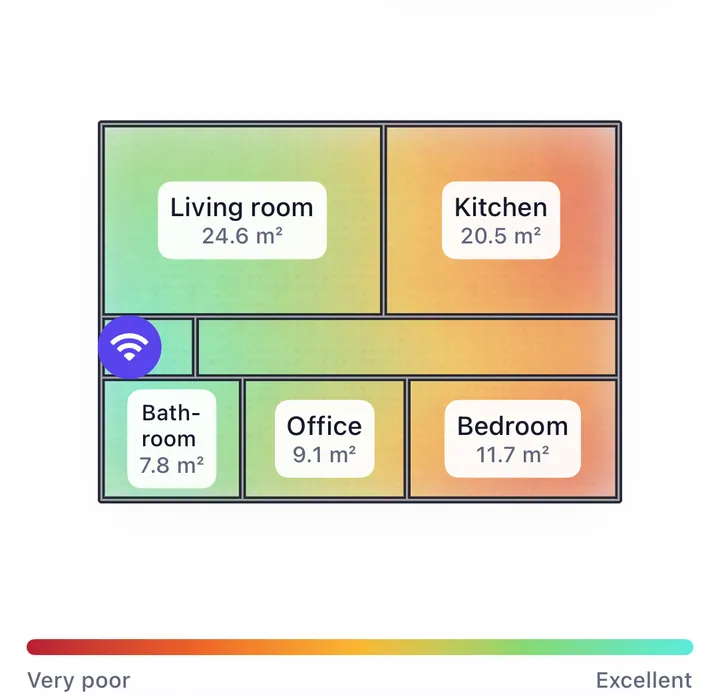
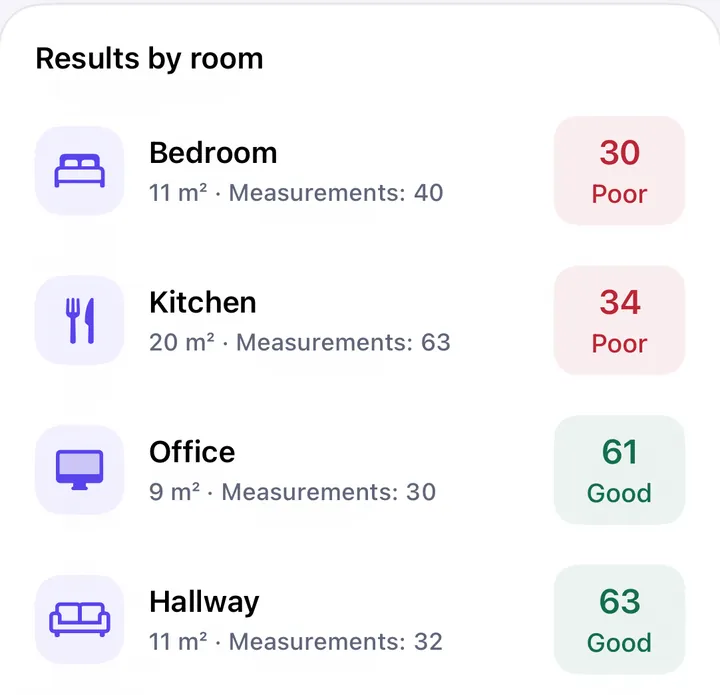
Both weak rooms are at the end of the same corridor, so the first thing to try is moving the router halfway down it, before buying anything. In where to put the router you can see the same apartment after that single move.